

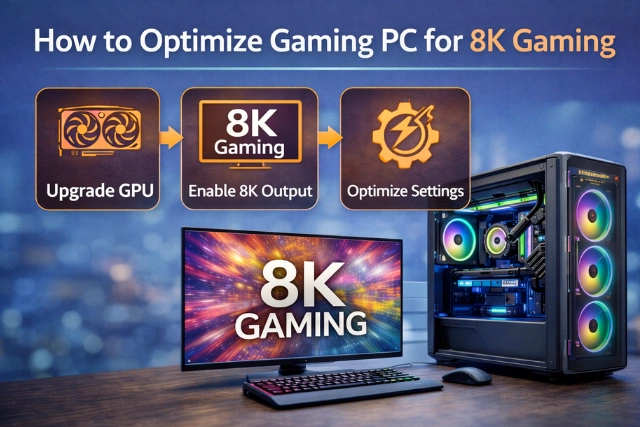
If you want to learn how to optimize a gaming PC for 8K gaming, you’re entering the world of ultra-high-resolution gaming performance. 8K gaming delivers incredible detail, sharper textures, and lifelike visuals. However, it also requires powerful hardware and smart system adjustments.
Many gamers upgrade their monitor first, only to realize their PC struggles to keep up. Knowing how to optimize gaming pc for 8k gaming helps you balance graphics quality, frame rate, and system stability. With the right setup and tuning, you can enjoy smooth gameplay without constant lag or overheating. Gamers building high-performance setups may also want to explore what a force break mod on a keyboard kit is for a better overall gaming experience.
To optimize a gaming PC for 8K gaming, upgrade to a powerful GPU, use at least 32GB RAM, install NVMe SSD storage, enable DLSS or FSR upscaling, optimize Windows settings, update drivers regularly, and improve system cooling for stable performance.
What Makes 8K Gaming So Demanding?
8K resolution means 7680 × 4320 pixels. That’s four times the pixels of 4K and sixteen times more than 1080p. Your graphics card, processor, RAM, and storage all work harder to push that many pixels.
Here’s a quick comparison:
| Resolution | Pixels | GPU Load | Ideal Use |
| 1080p | ~2M | Low | Competitive gaming |
| 4K | ~8M | High | High-detail gaming |
| 8K | ~33M | Extreme | Ultra-visual gaming |
Because of this heavy demand, optimization becomes essential.
Best Ways to Optimize a Gaming PC for 8K Gaming
Learning how to optimize gaming pc for 8k gaming starts with hardware strength and ends with smart software settings. Below are the key areas you should focus on.
1. Upgrade to a Powerful GPU
The graphics card is the heart of 8K gaming performance. Without a top-tier GPU, 8K will struggle.
Look for:
- High VRAM (16GB or more recommended)
- Advanced ray tracing support
- DLSS or AI upscaling technology
Modern GPUs with AI upscaling allow smoother frame rates by rendering internally at lower resolution and scaling to 8K. If you are upgrading your setup further, you can also check out our guide on premium tech accessories and hardware customization.
2. Choose a Strong CPU
While the GPU handles graphics, the CPU manages game logic, physics, and background tasks.
For smooth 8K gaming performance:
- Use at least 8–16 cores
- Aim for high clock speeds
- Avoid CPU bottlenecks
A weak processor can limit even the strongest GPU.
3. Increase RAM Capacity
When learning how to optimize gaming pc for 8k gaming, RAM often gets ignored.
For 8K:
- Minimum: 32GB RAM
- Ideal: 64GB for future-proofing
- Use high-speed DDR4 or DDR5
More RAM helps reduce stuttering and improves multitasking during gaming.
4. Install NVMe SSD Storage
Slow storage can cause long loading times and texture pop-ins.
Use:
- NVMe SSD for operating system
- Separate SSD for games
- Avoid HDD for modern AAA games
Fast storage improves overall gaming system optimization.
5. Adjust In-Game Graphics Settings
Even high-end PCs need smart adjustments.
Lower or tweak:
- Shadow quality
- Motion blur
- Anti-aliasing (if using DLSS)
- Volumetric effects
Ultra settings are not always necessary. Balanced settings can improve FPS without losing much visual quality.
6. Enable DLSS or FSR Upscaling
AI-based upscaling technology helps dramatically in 8K. NVIDIA also explains how DLSS improves gaming performance in its official DLSS technology guide.
DLSS (NVIDIA) and FSR (AMD):
- Boost frame rates
- Maintain sharp image quality
- Reduce GPU strain
This is one of the smartest ways to optimize gaming PC for ultra high resolution gaming.
7. Keep Drivers Updated
Outdated GPU drivers reduce performance.
Regularly update:
- Graphics drivers
- Motherboard BIOS
- Windows updates
- Chipset drivers
Updates often include performance boosts for new games.
8. Optimize Windows for Gaming
Simple system tweaks can make a difference.
Steps:
- Enable Game Mode
- Turn off background startup apps
- Set power mode to High Performance
- Disable unnecessary overlays
This reduces background resource usage.
9. Improve Cooling and Airflow
8K gaming generates heat.
To prevent thermal throttling:
- Install high-quality CPU cooler
- Use multiple case fans
- Consider liquid cooling
- Monitor temperatures regularly
Overheating reduces gaming performance and hardware lifespan.
10. Consider Overclocking (Carefully)
If done properly, overclocking can increase FPS.
However:
- Monitor temperatures closely
- Use stable power supply
- Increase gradually
This step is optional but can help experienced users.
Recommended Hardware for 8K Gaming
| Component | Recommended Spec |
| GPU | High-end RTX or RX flagship |
| CPU | 8–16 core modern processor |
| RAM | 32GB–64GB |
| Storage | NVMe SSD |
| PSU | 850W+ Gold rated |
| Cooling | Liquid or advanced air cooling |
Common Mistakes to Avoid
When figuring out how to optimize gaming pc for 8k gaming, avoid these mistakes:
- Using low VRAM GPUs
- Ignoring airflow
- Running background streaming apps
- Playing at native 8K without upscaling
- Using outdated drivers
Smart optimization is about balance, not just expensive hardware.
Is 8K Gaming Worth It?
- 8K gaming looks amazing, especially on large screens. But it requires serious investment.
- For competitive players, high FPS at lower resolution might be better.
- For cinematic gamers, 8K provides unmatched detail.
Common 8K Gaming Performance Problems
Low FPS during AAA games
- GPU overheating
- Texture pop-ins
- CPU bottlenecks
- Stuttering during gameplay
- Driver compatibility issues
Most of these issues can be reduced through proper cooling, updated drivers, optimized graphics settings, and AI upscaling technologies like DLSS or FSR.
Conclusion
Understanding how to optimize a gaming PC for 8K gaming is about combining powerful hardware with smart system tuning. Upgrading your GPU, increasing RAM, using NVMe storage, enabling upscaling technology, and managing cooling all play a role.
Instead of chasing only the highest settings, focus on smooth performance and system stability. With the right adjustments, your gaming PC can handle ultra high resolution gaming while delivering stunning visuals and consistent frame rates.
As 8K gaming technology continues evolving, balancing performance, cooling, and graphics settings will become even more important. A properly optimized gaming PC not only delivers better visuals but also improves long-term hardware stability and gaming consistency.
Frequently Asked Questions (FAQs)
1. What GPU is needed for 8K gaming?
You need a top-tier GPU with at least 16GB VRAM. AI upscaling support is strongly recommended.
2. Is 32GB RAM enough for 8K gaming?
Yes, 32GB is enough for most modern games. 64GB is better for future-proofing.
3. Can 8K gaming run at 60 FPS?
Yes, but usually with DLSS or FSR enabled. Native 8K at high settings can be demanding.
4. Does the CPU matter in 8K gaming?
Yes. A weak CPU can bottleneck the GPU, reducing performance.
5. Should I use DLSS for 8K?
Absolutely. DLSS improves frame rate while maintaining image clarity.
6. Is overclocking necessary for 8K gaming?
Not mandatory. It helps slightly but requires proper cooling and experience.