

Written by the ProTechMagazine Content Team | Reviewed by Deepu Thakur, Technology Enthusiast | Last updated: October 2026
Quick Answer:
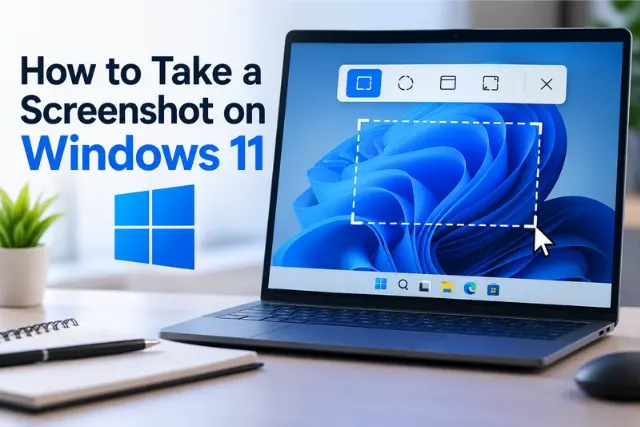
So, how to Take a Screenshot on Windows 11? If you want to quickly capture part of your screen, press Windows + Shift + S. Windows will open the Snipping Tool overlay, where you can select a rectangular area, freeform area, window, or the full screen. For a full screen screenshot that is saved automatically, press Windows + PrtScn.
Sometimes you need to save exactly what is on your computer screen. It could be an error message you want to send to tech support, an online receipt you want to keep, or simply something interesting you want to share with a friend.
The good news is that Windows 11 already has several built-in ways to take screenshots. You do not need to download another application for basic screen captures. If you also use Android applications on your PC, explore these best Android emulators for Windows 11.
The easiest method is Windows + Shift + S, which opens the Snipping Tool and lets you select the exact part of the screen you want to capture. You can also capture the entire screen, a single window, or use the Print Screen key.
Here are the easiest ways to take a screenshot on Windows 11 and when to use each one.
Windows 11 Screenshot Shortcuts at a Glance
| What you want to do | Shortcut |
| Capture part of the screen | Windows + Shift + S |
| Capture the entire screen and save it | Windows + PrtScn |
| Capture the active window | Alt + PrtScn |
| Copy a screenshot | PrtScn |
| Paste a copied screenshot | Ctrl + V |
For most people, Windows + Shift + S is the easiest screenshot shortcut to remember.
How to Take a Screenshot on Windows 11 Using the Keyboard?
The keyboard is often the quickest way to take a screenshot on a Windows 11 PC. For more shortcuts beyond screen capture, see Microsoft’s guide to Windows keyboard shortcuts.
Method 1: Use Windows + Shift + S
This is the most flexible option because you can choose exactly what you want to capture.
Follow these steps:
- Open the webpage, application, document, or screen you want to capture.
- Press Windows + Shift + S.
- Your screen will become slightly darker.
- A screenshot toolbar will appear at the top.
- Choose the capture mode.
- Select the area you want to capture.
- Windows will copy the screenshot to your clipboard.
- Select the notification that appears if you want to edit or save the image.
You can then crop, mark up, copy, save, or share the screenshot using the Snipping Tool.
Method 2: Use Windows + PrtScn
Want to capture everything currently visible on your screen?
Press:
Windows + PrtScn
The screenshot will normally be saved automatically in:
Pictures > Screenshots
This is a convenient option when you do not need to crop the image first.
How to Take a Quick Screenshot on Windows 11
If speed is your priority, there are two shortcuts worth knowing.
For a selected area
Press:
Windows + Shift + S
Then drag your mouse over the area you want.
For the entire screen
Press:
Windows + PrtScn
Windows captures the whole display and saves the image.
Which one should you use?
- Use Windows + Shift + S when you only need part of the screen.
- Use Windows + PrtScn when you need everything visible.
- Use Alt + PrtScn when you only need the active window.
How to Take a Partial Screenshot on Windows 11?
You do not have to capture your entire desktop every time.
If you only want a particular section, such as an error message, image, paragraph, or part of a webpage, use the Snipping Tool.
Steps to capture part of your screen
- Press Windows + Shift + S.
- Select the rectangular snip option.
- Click and hold the mouse button.
- Drag over the area you want.
- Release the mouse button.
- Click the notification to open the screenshot.
- Edit or save it as needed.
This is also the easiest way to take a cropped screenshot on Windows 11 without capturing unnecessary parts of the screen.
When is a partial screenshot useful?
- Sharing a specific error message
- Capturing part of a webpage
- Saving an image from your screen
- Showing someone a particular setting
- Sending a small section of a document
- Hiding unrelated information before sharing
How to Take a Screenshot of One Window on Windows 11?
If several applications are open, you may only want to capture one of them.
Windows 11 lets you do this without manually cropping the screenshot.
Using Snipping Tool
- Press Windows + Shift + S.
- Choose the window capture option.
- Move the pointer over the application window.
- Select the window.
- Open the screenshot from the notification.
You can also press Alt + PrtScn to capture the active window and copy it to the clipboard.
This can be especially useful when you are reporting a problem with a particular application.
How to Use a Snipping Tool on Windows 11?
Snipping Tool is built into Windows 11, so you do not need to install a separate screenshot program.
To open it:
- Select Start.
- Type Snipping Tool.
- Open the application.
- Select the option to start a new capture.
- Choose the area you want to capture.
You can use different capture modes depending on what you need.
| Snipping Tool mode | Best for |
| Rectangular | A specific section of the screen |
| Freeform | An irregularly shaped area |
| Window | One application |
| Full screen | Everything visible on the display |
After taking a screenshot, you can use the Snipping Tool to make basic edits before saving or sharing it.
How to Take a Screenshot on a Windows 11 Laptop?
The screenshot process is generally the same whether you use a desktop PC or a Windows 11 laptop.
The main difference is the keyboard layout.
Some laptops have a dedicated PrtScn key, while others combine it with another function.
If your Print Screen shortcut does not work, try checking whether your laptop requires the Fn key.
However, you can avoid this issue altogether by using:
Windows + Shift + S
This does not require you to find a dedicated Print Screen button.
How to Take a Screenshot on an HP Laptop Running Windows 11?
If you have an HP laptop with Windows 11, you can use the standard Windows screenshot shortcuts. If you’re exploring compact devices for everyday tasks, you can also check out this HP Stream 11.6-inch Cloudbook.
Your main options are:
- Windows + Shift + S for a selected area
- Windows + PrtScn for the entire screen
- Alt + PrtScn for the active window
- Snipping Tool for more control
If the Print Screen key does not appear to work, check whether you need to hold Fn while pressing it.
How to Take a Screenshot on a Lenovo Laptop Running Windows 11?
A Lenovo laptop running Windows 11 also supports the standard screenshot methods.
For a quick capture:
Windows + Shift + S
For a full screen screenshot:
Windows + PrtScn
If your Lenovo keyboard combines Print Screen with another function, try using the Fn key.
You can also search for Snipping Tool from the Start menu if you prefer using the mouse.
How to Take a Screenshot on a Dell Laptop Running Windows 11
Dell laptops running Windows 11 work with the same built in screenshot tools.
| Need | Shortcut |
| Selected area | Windows + Shift + S |
| Full screen | Windows + PrtScn |
| Active window | Alt + PrtScn |
If you cannot find the Print Screen key, Windows + Shift + S is the simplest alternative.
How to Take a Screenshot on an MSI Laptop Running Windows 11?
MSI laptops running Windows 11 also support Windows’ built in screenshot tools.
For everyday screenshots, you can use:
- Windows + Shift + S
- Windows + PrtScn
- Alt + PrtScn
- Snipping Tool
If you mainly want to capture games, you can also explore Windows gaming features such as Game Bar. For ordinary desktop screenshots, however, Snipping Tool is usually enough.
How to Take a Screenshot on Windows 11 Without PrtScn?
Don’t have a Print Screen key? You can still take a screenshot.
The simplest solution is:
Press Windows + Shift + S.
Then:
- Choose a capture mode.
- Select the area you want.
- Open the screenshot notification.
- Save or copy the image.
This is useful for:
- Compact keyboards
- Small laptops
- Keyboards where Print Screen is hidden
- Users who simply prefer mouse based selection
You can also open the Snipping Tool directly from the Start menu.
How to Take a Long Screenshot on Windows 11?
A long screenshot is different from a normal screenshot.
A normal screenshot captures what is visible on your screen. A long or scrolling screenshot captures content that continues beyond the visible area, such as an entire webpage.
Windows 11 does not provide one universal scrolling screenshot function that works across every application.
For a long webpage, your browser may be a better option.
Normal screenshot vs. long screenshot
| Normal screenshot | Long screenshot |
| Captures visible content | Captures content beyond the screen |
| Good for error messages | Good for webpages |
| Usually quick | May require additional processing |
| Built into Windows | Often handled by browser tools |
If you need a long capture of a webpage, check whether your browser provides a full page capture option or use a reputable screenshot extension.
How to Take a Screenshot on Google Chrome Windows 11?
If you are browsing in Chrome and only want to capture what you can currently see, you can simply use:
Windows + Shift + S
Select the part of the Chrome window you want to capture.
However, if you want to capture an entire webpage, remember that a regular screenshot only captures the visible portion.
For a full page screenshot, you need a browser based capture method that can include content below the visible screen.
This distinction matters when you are trying to save a long article, webpage or online document.
Where Are Screenshots Saved on Windows 11?
Where your screenshot goes depends on the method you use.
| Method | Result |
| Windows + PrtScn | Usually saved in Pictures > Screenshots |
| Windows + Shift + S | Copied to clipboard and available through Snipping Tool |
| Alt + PrtScn | Copied to clipboard |
| PrtScn | Copied or handled according to your Windows settings |
If you cannot find your screenshot, open:
File Explorer → Pictures → Screenshots
If you used a shortcut that copied the image instead of saving it, open an application such as Paint and press:
Ctrl + V
The screenshot should appear there.
How to Edit a Screenshot on Windows 11?
Taking the screenshot is only half the job. Sometimes you need to clean it up before sending it to someone.
Snipping Tool allows you to perform basic edits such as:
- Cropping the image
- Drawing on the screenshot
- Highlighting an area
- Copying the image
- Saving the image
- Sharing the screenshot
For example, if you are sending a screenshot to tech support, you can highlight the exact error instead of making the person search through the entire image.
Check your screenshot before sharing
Take a quick look for:
- Email addresses
- Phone numbers
- Personal conversations
- Account information
- Notifications
- Other private information
It is easy to capture something in the background without noticing it.
What to Do If Windows 11 Screenshot Is Not Working?
If a screenshot shortcut does nothing, try these simple checks before looking for another screenshot application.
Try these fixes:
- Press Windows + Shift + S instead of using the Print Screen key.
- Open Snipping Tool from the Start menu.
- Check whether your laptop requires the Fn key.
- Make sure the keyboard is working normally.
- Check your Windows settings related to the Print Screen key.
- Restart Snipping Tool if it has stopped responding.
- Restart your PC if the problem continues.
- Check for available Windows updates.
If Windows + Shift + S works but your Print Screen key does not, the issue is likely related to the keyboard shortcut or your keyboard configuration rather than screenshots themselves.
Common Screenshot Mistakes to Avoid
Even though taking screenshots is simple, a few mistakes can make the process frustrating.
Avoid these:
- Capturing the entire screen when you only need one section
- Forgetting that some shortcuts copy the image instead of saving it
- Sharing screenshots that contain personal information
- Assuming Windows can automatically create a scrolling screenshot for every application
- Installing unnecessary software for basic screenshot tasks
- Forgetting to check where the screenshot was saved
Which Is the Best Way to Take a Screenshot on Windows 11?
There is no single method that is best for every situation.
The easiest choice depends on what you are trying to capture.
| Situation | Best option |
| Quick selected screenshot | Windows + Shift + S |
| Full screen saved automatically | Windows + PrtScn |
| One application window | Alt + PrtScn |
| Irregular shape | Freeform Snip |
| Screenshot without PrtScn | Windows + Shift + S |
| Long webpage | Browser based capture |
| Screenshot on a laptop | Windows + Shift + S |
If you only remember one shortcut, remember Windows + Shift + S. It gives you the most control and works across Windows 11 PCs and laptops.
Final Thoughts
Taking a screenshot on Windows 11 is much easier once you know a few basic shortcuts. For most situations, Windows + Shift + S is the one to remember because it lets you choose exactly what you want to capture.
Use Windows + PrtScn when you want the entire screen saved automatically, or Alt + PrtScn when you only need the active window.
Whether you are using an HP, Dell, Lenovo, MSI or another Windows 11 laptop or PC, the built in tools are usually all you need. Once these shortcuts become familiar, saving or sharing something from your screen takes only a few seconds.
Frequently Asked Questions
How do I take a screenshot on Windows 11?
Press Windows + Shift + S to open the Snipping Tool capture overlay. Select the area you want to capture, then open the notification to edit or save the screenshot.
How do I take a screenshot on Windows 11 without the Print Screen?
Press Windows + Shift + S. You can select part of the screen, a window, or the full screen without needing a dedicated Print Screen key.
How do I take a quick screenshot on Windows 11?
For a selected area, use Windows + Shift + S. For a full screen screenshot that saves automatically, use Windows + PrtScn.
How do I take a partial screenshot on Windows 11?
Press Windows + Shift + S, choose a rectangular snip, and drag over the section you want to capture.
How do I take a screenshot on a Windows 11 laptop?
You can use Windows + Shift + S on most Windows 11 laptops. You can also use Windows + PrtScn if your laptop supports the Print Screen shortcut.
How do I take a long screenshot on Windows 11?
A standard Windows screenshot captures the visible screen. For a long webpage, use a browser feature or tool designed for full page or scrolling screenshots.
Where are screenshots saved in Windows 11?
Screenshots taken with Windows + PrtScn are normally saved under Pictures > Screenshots. Other screenshot shortcuts may copy the image to your clipboard instead.
Disclaimer:
This article is for informational purposes only. Screenshot shortcuts and features may vary depending on your device, keyboard layout, and Windows settings. Some steps may differ across Windows 11 versions. Refer to Microsoft’s official support documentation for the latest instructions.