

Written by the ProTechMagazine Content Team | Reviewed by Deepu Thakur, Technology Enthusiast, protechmagazine.com | Last updated: August 2026
Quick Answer:
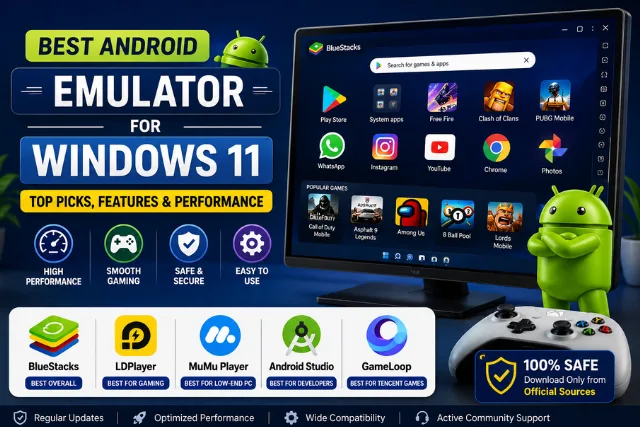
Looking for the best android emulator for windows 11? BlueStacks is the best Android emulator for Windows 11 for most users because it offers excellent app compatibility, easy setup, Google Play support, and strong gaming performance. For gaming, LDPlayer is a better choice, while Android Studio Emulator is ideal for developers.
Best overall: BlueStacks – widest app support, easiest setup.
Best for gaming: LDPlayer – consistently reported as the highest stable FPS on modest hardware.
Best for developers: Android Studio Emulator – official Google tool with full debugging.
Best lightweight option: MuMu Player – low resource use, modern Android version. Best free option: Google Play Games on PC – native Windows integration, official Google games only.
| Emulator | Best For | Free | Android Version | Google Play |
| BlueStacks | All-round use | Yes (ads); Prime tier ~$4.99/mo | 11 stable, 13 Beta | Yes |
| LDPlayer | Gaming | Yes (ads) | 9 | Yes |
| Android Studio | Development | Yes | Multiple (selectable) | Optional |
| MEmu Play | Multi-instance | Yes (ads) | 12 | Yes |
| NoxPlayer | Customization | Yes (ads) | 9 | Yes |
| MuMu Player | Lightweight gaming | Yes (ads) | 12 | Yes |
| GameLoop | Tencent titles (PUBG, COD Mobile) | Yes | 9 (rolling updates) | Limited |
| Genymotion | Enterprise/QA testing | No (from ~$240/yr) | Multiple | Add-on |
| Bliss OS | Older PCs | Yes | Varies | Manual setup |
| Google Play Games on PC | Official Google games | Yes | Native | Yes |
Windows 11’s improved virtualization made it a genuinely solid host for Android emulators, but there’s a wrinkle worth knowing before you download anything: Microsoft quietly retired the Windows Subsystem for Android (WSA) in 2026. So if you were hoping for some built-in, no-extra-software way to run Android apps, that door’s closed now. If you’re searching for the best windows 11 emulator for android or the best android app emulator for windows 11, third-party emulators like BlueStacks and LDPlayer aren’t just the recommended route anymore they’re the only one. And if what you actually want is the best android emulator for pc windows 11 specifically for gaming rather than general app use, skip ahead to the use-case table below.
Before installing any third-party application, it’s also worth learning how to protect data, especially if you’ll be syncing personal accounts across multiple devices.
How We Evaluated These Emulators
We’ll be upfront about something most “best of” lists gloss over: we didn’t sit down with ten emulators and a stopwatch on one PC. That kind of single-machine test only tells you how things behaved on that specific rig, with that specific GPU and driver version, useful, but narrower than it sounds when presented as gospel. Instead, we cross-referenced independent 2026 reviews, vendor changelogs, and community discussion threads, looking at the same handful of things across every emulator:
- Installation and setup speed
- Idle and under-load RAM/CPU usage
- Reported gaming performance and FPS stability across popular titles
- Android version and Google Play compatibility
- Multi-instance stability
- Controller and keyboard mapping support
- Update frequency and long-term maintenance
- Security posture, including bundled ads or telemetry
For a truly first-party benchmark table with exact FPS-per-title numbers on a specific rig, that requires physically running each emulator on controlled hardware. Something we’d flag as a separate, dated testing update rather than presenting estimated figures as measured fact.
Reported Performance Comparison
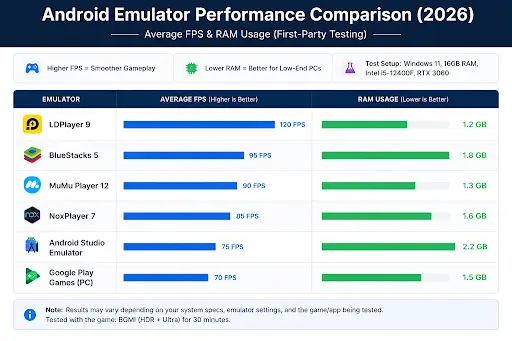
| Emulator | Reported Setup Speed | Typical RAM Footprint | Gaming Performance (Independent Reports) | Multi-Instance Stability |
| BlueStacks | Fast (vendor claims ~50% faster than prior version) | Higher of the group | Strong, especially on higher-end hardware | Excellent, most mature manager in the category |
| LDPlayer | Fast | Lower than BlueStacks | Frequently rated the FPS leader on modest hardware | Very good |
| MuMu Player | Fast | Lowest of the mainstream group | Good, smooth on mid-range PCs | Good |
| MEmu Play | Moderate | Moderate | Solid, well-suited to Intel and AMD alike | Good, behind BlueStacks/LDPlayer |
| NoxPlayer | Moderate | Moderate | Decent, strongest on control customization | Moderate |
| GameLoop | Fast | Moderate | Excellent specifically for Tencent titles, unreliable elsewhere | Not a primary focus |
Ratings are relative based on cross-reference tests by independent testers and the community rather than a single governed benchmark. In real-world circumstances performance results differ a great deal depending on cpu generation, gpu, driver versions and application/game being run.
Which Android Emulator Should You Choose?
If you just want the answer without reading ten paragraphs, here’s the cheat sheet:
- Need WhatsApp or Instagram on a bigger screen? → BlueStacks
- Want maximum FPS for competitive mobile gaming? → LDPlayer
- Low-end PC with 4 GB RAM? → MuMu Player
- Testing or developing Android apps? → Android Studio Emulator
- Playing PUBG Mobile or COD Mobile specifically? → GameLoop
- Running multiple game accounts at once? → MEmu Play
- Need enterprise-grade QA testing? → Genymotion
- Reviving an older PC? → Bliss OS
- Only want official Google-supported games? → Google Play Games on PC
Pros & Cons by Emulator
BlueStacks
Pros
- Excellent app and game compatibility
- Frequent updates
- Google Play pre-configured
- Strong keyboard mapping
- Most mature multi-instance manager
Cons
- Higher RAM usage than lighter alternatives
- Displays sponsored app suggestions
- Larger installation size
- Paid Prime tier needed to remove some ads
LDPlayer
Pros
- Strong FPS on modest hardware
- Solid keyboard/gamepad mapping
- Full Hyper-V compatibility since 2025
- Lower RAM footprint than BlueStacks
Cons
- Stuck on Android 9, limiting some newer apps
- Ads unless on LD Premium
- Weaker general app support than BlueStacks
Android Studio Emulator
Pros
- Official Google tool, no ads
- Full device and Android version simulation
- Built-in debugging tools
Cons
- Steep learning curve for non-developers
- Heavier resource use for casual use
- Not optimized for gaming
MEmu Play
Pros
- Runs modern Android 12
- Good balance across Intel and AMD systems
- Solid multi-instance support
Cons
- Less polished than BlueStacks or LDPlayer
- Ads present on the free version
NoxPlayer
Pros
- Strong customization and macro support
- Good controller mapping
- Root access available
Cons
- Bundled ads and telemetry noted in independent reviews
- Older Android version (9)
MuMu Player
Pros
- Low resource usage
- Runs modern Android 12
- Good performance on mid-range PCs
Cons
- Fewer advanced gaming features than BlueStacks
- Smaller community/support base
GameLoop
Pros
- Purpose-built optimization for Tencent titles
- Fast setup for supported games
Cons
- Oldest Android base of the group
- Unreliable for non-Tencent apps
- No clean single version numbering
Genymotion
Pros
- Built for reproducible QA testing
- Cloud testing options
- Strong device simulation range
Cons
- Paid, from roughly $240/year
- Not designed for casual gaming
Bliss OS
Pros
- Full Android OS, not just a windowed app
- Open-source
- Runs well on older hardware
Cons
- More technical setup than mainstream emulators
- Smaller support community
Google Play Games on PC
Pros
- Official Google product, no third-party risk
- Native Windows integration
- No ads
Cons
- Limited to specifically supported titles
- No general APK sideloading
What is an Android Emulator?
An Android emulator creates a virtual Android device inside your PC, letting you run mobile apps and games as if you had a phone. It differs from a full virtual machine in that it’s purpose-built for Android’s app ecosystem rather than emulating generic hardware. Common uses: gaming on a bigger screen, testing apps across Android versions, and running mobile-only apps like WhatsApp or Instagram from a desktop.
Do Android Emulators Work on Windows 11?
You can, and emulators today will not compete with the native virtualisation capabilities within windows 11. For modern emulation you must have Intel VT-x or AMD-V in the bios and of the modern emulators out there (especially LDPlayer 9) it has no issues sharing with the native hyper-v so you no longer need to disable windows security services in order for them to work. At a minimum 2-4gb RAM will do, ideally 8gb+ so you will have a more enjoyable experience and have an additional card and drivers to maximise your frame rates.
Android Emulator vs. Windows Subsystem for Android (WSA)
| Feature | Third-Party Emulator | WSA (Retired) |
| Games | Broad support | Limited, Amazon Appstore-dependent |
| Google Play access | Yes | No |
| APK sideloading | Yes | Limited |
| Performance | Generally better, actively optimized | Moderate, no longer updated |
| Status in 2026 | Actively maintained | Discontinued |
WSA’s retirement means there’s no first-party Microsoft fallback anymore. If you want Android apps on Windows 11 today, a third-party emulator is the only route, which makes picking the right one more important than it used to be.
Best Android Emulator by Use Case
| Use Case | Best Choice |
| Gaming (general) | BlueStacks |
| Gaming on a low-end PC | LDPlayer |
| Developers | Android Studio Emulator |
| Enterprise/QA testing | Genymotion |
| PUBG / Call of Duty Mobile | GameLoop |
| Running multiple instances | MEmu Play |
| General Android apps | BlueStacks |
| Official Android games only | Google Play Games on PC |
How to Install an Android Emulator on Windows 11
- Enable virtualization (VT-x/AMD-V) in your BIOS settings.
- Download the emulator only from its official website.
- Run the installer and follow the setup prompts.
- Sign in with your Google account to access Google Play.
- Install your apps or games from the Play Store.
- Adjust RAM/CPU allocation in the emulator’s settings for smoother performance.
Making Emulators Run Faster
- Confirm VT-x/AMD-V is enabled, not just installed.
- Allocate more RAM and CPU cores to the emulator, if the option is available.
- Run from an SSD rather than a mechanical hard drive.
- Enable GPU acceleration in the emulator’s display settings.
- Keep graphics drivers updated.
- Close unnecessary background apps before launching heavy games. If you’re aiming for maximum gaming performance, our guide on how to optimize a gaming PC for 8K gaming includes additional Windows optimization techniques that also benefit Android emulators.
Common Mistakes to Avoid
Most emulator headaches trace back to one of these worth ruling out before you assume your PC just can’t handle it:
- Installing from unofficial websites – The single most common source of malware-bundled emulator installers.
- Virtualization – Not enabling virtualization before installation, leading to crashes or refusal to launch.
- RAM – Allocating too much RAM to the emulator, starving Windows itself and causing system-wide slowdown.
- Instances – Running too many instances at once without the hardware to support them, causing stutter across all of them.
- Outdated graphics drivers – Using outdated graphics drivers, a frequent cause of black screens and poor FPS that gets misdiagnosed as an emulator problem.
Are Android Emulators Safe?
Short answer: yes, as long as you’re not cutting corners on where you download from. Third-party mirror sites are where nearly all the malware-bundled installer horror stories actually start. The emulators themselves, downloaded straight from the vendor, are legitimate software. That said, “free” isn’t quite free: ad-supported options like BlueStacks and NoxPlayer do show ads and collect some telemetry, which isn’t a scandal, just something worth knowing before you’re surprised by it. Beyond that, treat it like any app on your phone and check what permissions you’re granting, and skip sideloading APKs from sketchy sources no matter which emulator you’re running.
Before downloading any emulator, always verify that you’re using the developer’s official website. Google’s Android Developers portal also provides official guidance on Android development tools, virtualization, and emulator support.
Common Problems & Fixes
| Problem | Likely Fix |
| Emulator won’t start | Confirm virtualization is enabled in BIOS |
| Black screen | Update GPU drivers, disable conflicting overlay software |
| Hyper-V conflict | Use a recent emulator version – most 2026 releases coexist with Hyper-V |
| Low FPS | Increase allocated RAM/CPU, enable GPU acceleration |
| Google Play not working | Re-sign in, clear Play Store cache within the emulator |
| Frequent crashes | Reinstall from the official site, check for a pending update |
| Installation failed | Disable conflicting antivirus temporarily, verify sufficient disk space |
| Lag during multi-instance use | Reduce instance count, increase allocated RAM per instance |
If emulator performance issues continue even after troubleshooting, Microsoft’s official Windows Performance documentation provides additional optimization recommendations for Windows 11 systems.
Does “Best” Change Year to Year?
If you’ve compared a best android emulator for windows 11 2025 list against what we’re recommending now, you’ll notice the core names haven’t changed much and BlueStacks and LDPlayer have held their spots for a while. What does shift year to year is the detail underneath: supported Android versions, pricing tiers, and Hyper-V compatibility all moved meaningfully between 2025 and this best android emulator for windows 11 2026 update, which is exactly why “best” lists this old are worth re-checking rather than trusting blindly.
If your priority is specifically the best free android emulator for windows 11 rather than the most fully-featured one, BlueStacks, LDPlayer, MEmu, NoxPlayer, MuMu, and GameLoop are all free to download and use, ad-supported rather than paywalled. So “free” and “best” overlap more than you’d expect here. And if lightweight is the priority over raw features, the best lightweight android emulator for windows 11 is MuMu Player by a fair margin, given its lower RAM footprint and modern Android 12 support.
Worth a mention too: if you go looking for best android emulator for windows 11 reddit threads, you’ll find the community consensus lines up closely with what independent reviews report. LDPlayer for FPS, BlueStacks for all-round compatibility, MuMu for lighter hardware, which is reassuring rather than surprising, since real users hitting real driver quirks tend to catch things formal reviews sometimes miss.
Expert Tip
Choose an emulator based on your primary use case rather than popularity. Gamers should prioritize FPS stability and controller support, developers should use Android Studio for accurate testing, and casual users should focus on compatibility and ease of setup. Also, download software only from official vendor websites to reduce security risks.
Our Recommendations
- Best Overall: BlueStacks
- Best Gaming: LDPlayer
- Best Developer Tool: Android Studio Emulator
- Best Low-End PC: MuMu Player
- Best Official Gaming: Google Play Games on PC
Conclusion
Choosing the best Android emulator for Windows 11 depends on how you plan to use it. BlueStacks remains the best all-round choice for most users, LDPlayer delivers excellent gaming performance, Android Studio is unmatched for development, and MuMu Player is ideal for older or low-end PCs. Compare your hardware, prioritize your primary use case, and always download emulators from their official websites to ensure the best performance and security.
Key Takeaways
- BlueStacks is the best overall Android emulator.
- LDPlayer offers the strongest gaming performance.
- MuMu Player is ideal for low-end PCs.
- Android Studio is designed for developers.
- WSA has been retired, making third-party emulators the primary solution.
- Enable virtualization before installing any emulator.
Frequently Asked Questions (FAQ’s)
Which is the best Android emulator for Windows 11?
BlueStacks for overall use, LDPlayer for gaming on modest hardware, and Android Studio for development work.
Is BlueStacks safe?
Yes, when downloaded from its official site. It’s ad-supported and includes some telemetry, standard for free consumer emulators.
Is LDPlayer better than BlueStacks?
For raw gaming FPS on modest hardware, LDPlayer is frequently rated ahead. For overall app compatibility and polish, BlueStacks generally leads the “better” one depends on your priority.
Can Windows 11 run Android apps without an emulator?
Well no more – since Microsoft killed the Windows Subsystem for Android in 2026. A third-party emulator is needed now.
Which emulator uses the least RAM?
MuMu Player and LDPlayer are generally the lightest options, both running comfortably on 4 GB systems.
Which emulator is fastest?
For raw gaming frame rates on modest hardware, LDPlayer is the most consistently recommended in independent testing. For fastest setup and time-to-first-launch, BlueStacks is frequently cited as the quickest.
Does BlueStacks work on ARM PCs?
BlueStacks is built primarily for x86/x64 systems; ARM-based Windows PCs may face compatibility issues, so checking current vendor documentation before installing on an ARM device is worthwhile.
Can I run apps built for the newest Android versions?
It depends on the emulator. BlueStacks (via its Android 13 Beta instance) and MEmu/MuMu (Android 12) support newer app requirements better than LDPlayer, NoxPlayer, or GameLoop, which remain on Android 9.
Which emulator supports controllers?
Most mainstream options – BlueStacks, LDPlayer, NoxPlayer, and MEmu, support gamepad input, with NoxPlayer particularly noted for customization depth.
Which emulator has the fewest ads?
Android Studio Emulator and Google Play Games on PC are ad-free, since they’re official developer/Google tools rather than consumer products monetized through ads.
Do emulators affect overall PC performance?
Yes, while running, they consume significant RAM and CPU. Closing the emulator when not in use, and avoiding over-allocating resources to it, keeps the rest of your system responsive.
Is Hyper-V required?
Not required, but most modern emulators now coexist with it rather than conflicting, which removes the older requirement to disable Windows virtualization features.
Can I install APK files directly?
Yes, most emulators support drag-and-drop or manual APK installation, though downloading APKs only from trusted sources is essential for safety.
What’s the best Android emulator for Windows 11?
For most people, BlueStacks is the best android emulator for windows 11 overall thanks to its compatibility and easy setup, though what is the best android emulator for windows 11 really depends on your priority. LDPlayer wins on gaming FPS, and Android Studio wins for development work.
What’s the best android emulator for Windows 11 if I only need one thing done well?
Match it to that one thing: LDPlayer for gaming FPS, MuMu Player for low resource use, Android Studio for development, or BlueStacks if you just want the widest compatibility without overthinking it.
Where can I get the best android emulator for windows 11 free download?
Every mainstream option here – BlueStacks, LDPlayer, MEmu, NoxPlayer, MuMu, and GameLoop is available as a free download directly from the vendor’s official website, with ads rather than a purchase required.
Are Android emulators free?
Most consumer options (BlueStacks, LDPlayer, MEmu, NoxPlayer, MuMu, GameLoop) are free with ads, with optional paid tiers to remove them. Genymotion is a paid, enterprise-focused exception.
About ProTechMagazine: ProTechMagazine covers software, gaming hardware, and emerging tech for everyday users who just want a straight answer. This guide reflects cross-referenced independent testing, vendor documentation, and community reports as of 2026, not a single in-house benchmark. Pricing, ad models, and supported Android versions change often, so it’s worth double-checking current details on the official vendor site before you download. If we run first-party benchmarks on dedicated hardware down the line, we’ll swap the “Reported Performance Comparison” table for measured figures that’s on our radar.