

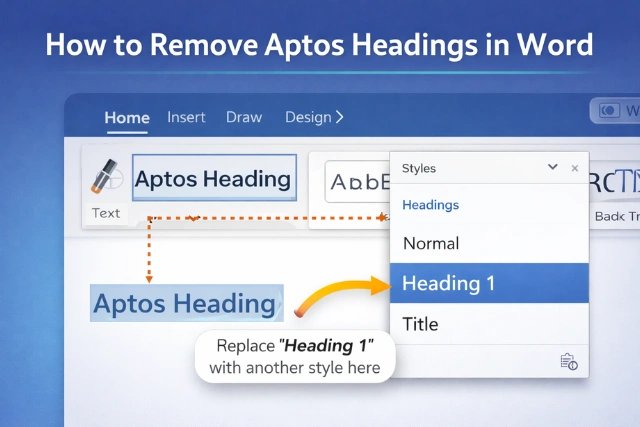
If you recently updated Microsoft Word and noticed Aptos automatically appearing as the default heading font (even if you did not select it), then you are not alone! Other users also wish to know how to remove Aptos headings in Word.
The change can be inconvenient for users who need to adhere to certain standards, such as brand guidelines, academic papers or documents created using various older templates. Knowing how to remove Aptos headings in Word gives you better control over document formatting without affecting the overall layout. Users working with professional templates may also find it helpful to learn how graphic design agreements and formatting standards work for branded documents.
Quick Answer: To remove Aptos headings in Word, go to the Home tab, right-click a heading style, select “Modify,” and change the font to your preferred option. You can also update theme fonts and set a new default font to stop Aptos from reappearing.
Why Does Microsoft Word Use Aptos for Headings?
Aptos, a Microsoft default font, is now included as a means to help improve document accessibility on a wide variety of devices. It is a fantastic font that looks great when used for contemporary documents, however, Aptos may not fit every document style or formatting requirement.
Common reasons Aptos appears in headings include:
| Cause | Fix |
|---|---|
| Word update | Modify heading styles |
| Imported template | Change theme fonts |
| Auto-applied styles | Clear formatting |
| Default Normal.dotm settings | Set new default font |
- Updated Word default styles
- Imported documents from newer templates
- Auto-applied heading styles
- Theme font overrides
Understanding these causes makes it easier to remove Aptos headings in Word permanently.
Step-by-Step Guide to Remove Aptos Headings in Word
The most reliable way to fix this is by editing heading styles directly.
- Open your Word document
- Go to the Home tab
- Right-click on Heading 1 (or any heading style)
- Select Modify
- Change the font from Aptos to your preferred font
- Click OK
Repeat this for Heading 2, Heading 3, and other styles as needed.
This method ensures you remove Aptos headings in Word without manually fixing each heading.
Remove Aptos Headings Using Theme Fonts
Sometimes Aptos comes from the document theme. Microsoft also explains theme font customization in the official Microsoft Word support center.
- Open the Design tab
- Click Fonts
- Choose a different font set or select Customize Fonts
- Replace Aptos for both heading and body text
This approach works best when dealing with large documents or templates. If you regularly edit digital documents, you may also want to understand whether graphic design requires coding knowledge.
Change Default Font to Prevent Aptos
If Aptos keeps coming back, update Word’s default font:
- Press Ctrl + D
- Select your desired font
- Click Set As Default
- Choose All documents based on Normal.dotm
This prevents Aptos headings in Word for future files.
Common Heading Font Issues and Fixes
| Problem | Cause | Solution |
| Aptos reappears after editing | Style not modified | Update heading styles |
| Mixed fonts in headings | Manual formatting | Clear formatting |
| Font changes don’t save | Template override | Edit theme fonts |
| Imported docs use Aptos | Newer Word version | Apply custom styles |
Advanced Formatting Tips
Clear Manual Formatting
Use Clear All Formatting before applying new styles to ensure Aptos is fully removed.
Save as a Custom Template
Once fixed, save the document as a template to avoid repeating the process. Professionals managing multiple document styles can also explore what makes a good graphic designer.
Use Style Inspector
The Style Inspector helps identify hidden Aptos formatting in complex documents. If you are building professional document layouts, you may also like our guide on creating a strong graphic design portfolio without experience.
Best Practices for Heading Management
| Best Practice | Benefit |
|---|---|
| Edit styles instead of text manually | Keeps formatting consistent |
| Save custom templates | Saves time in future documents |
| Use Style Inspector | Detects hidden formatting |
| Set default fonts | Prevents Aptos from returning |
- Always edit styles, not individual headings
- Avoid mixing manual font changes with styles
- Set theme fonts early in the document
- Test formatting before final export
Following these steps makes managing how to remove Aptos headings in Word much easier long-term.
Common Word Formatting Problems Related to Aptos
- Headings changing automatically
- Fonts not saving correctly
- Mixed heading styles
- Imported template font conflicts
- Theme fonts overriding manual changes
Most of these problems can be fixed by updating heading styles, clearing manual formatting, and setting custom theme fonts in Microsoft Word.
Conclusion
So, how to remove Aptos headings in Word. Whether you create business reports, academic papers, or branded documents, controlling heading styles helps maintain a professional appearance and saves time during future editing. Once your preferred fonts and themes are configured properly, managing Word documents becomes much easier.
Since Word is changing very quickly, using styles and themes correctly keeps documents cleaner, more organized, and easier to edit. You can also explore common misconceptions about graphic design and formatting for better workflow understanding.
Frequently Asked Questions (FAQs)
1. Why does Word keep switching my headings to Aptos?
Word applies Aptos through default styles or theme fonts introduced in recent updates.
2. Can I permanently remove Aptos headings in Word?
Yes. Modify heading styles and set your preferred font as default.
3. Does removing Aptos affect body text?
No, unless Aptos is applied through the document theme.
4. Is Aptos mandatory in newer Word versions?
No. You can fully replace it with any font you prefer.
5. Will this work for older Word documents?
Yes, but imported documents may require additional style cleanup.